Create a new Guest account on I-LEAD
I-LEAD accounts are used for a variety of different child care related purposes. They are used for accessing trainings, consent forms for background checks, licensing applications, and more. Anyone may create a free guest account. For details about other types of I-LEAD accounts, please see I-LEAD User Types for more information.
Below are the instructions on how to create a new guest account within the I-LEAD portal. Please note that creating this account will not automatically associate you with any particular child care facility, nor will it provide you access to the electronic consent form.
***When creating your account, please be sure to use your PERSONAL email address. This is so your account can be used at different child care programs should you ever choose to work elsewhere. Your email address can't be changed or traded to someone else once the I-LEAD account is created.***
Note: Those who lost access to their email and don't remember their I-LEAD password will need to create a new I-LEAD account and merge. To create a new account, please follow the steps below:
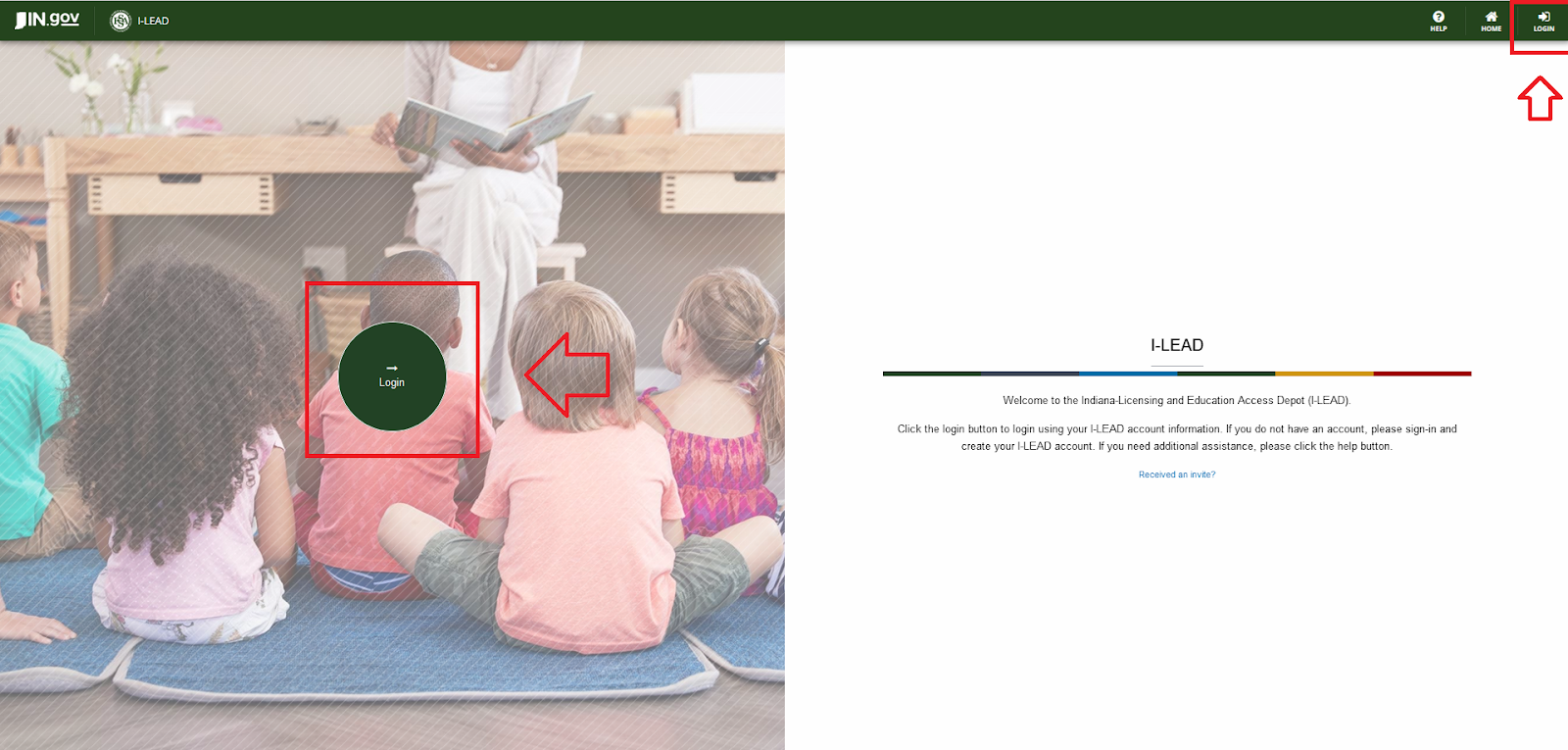
1.) Navigate to the I-LEAD website.
2.) Click on the green LOGIN button on the left side of the screen or the upper right corner.
3.) Create an Access Indiana account using "Don't have an Access Indiana Account?" (Use this step-by-step guide: https://www.in.gov/access/getting-started.html).

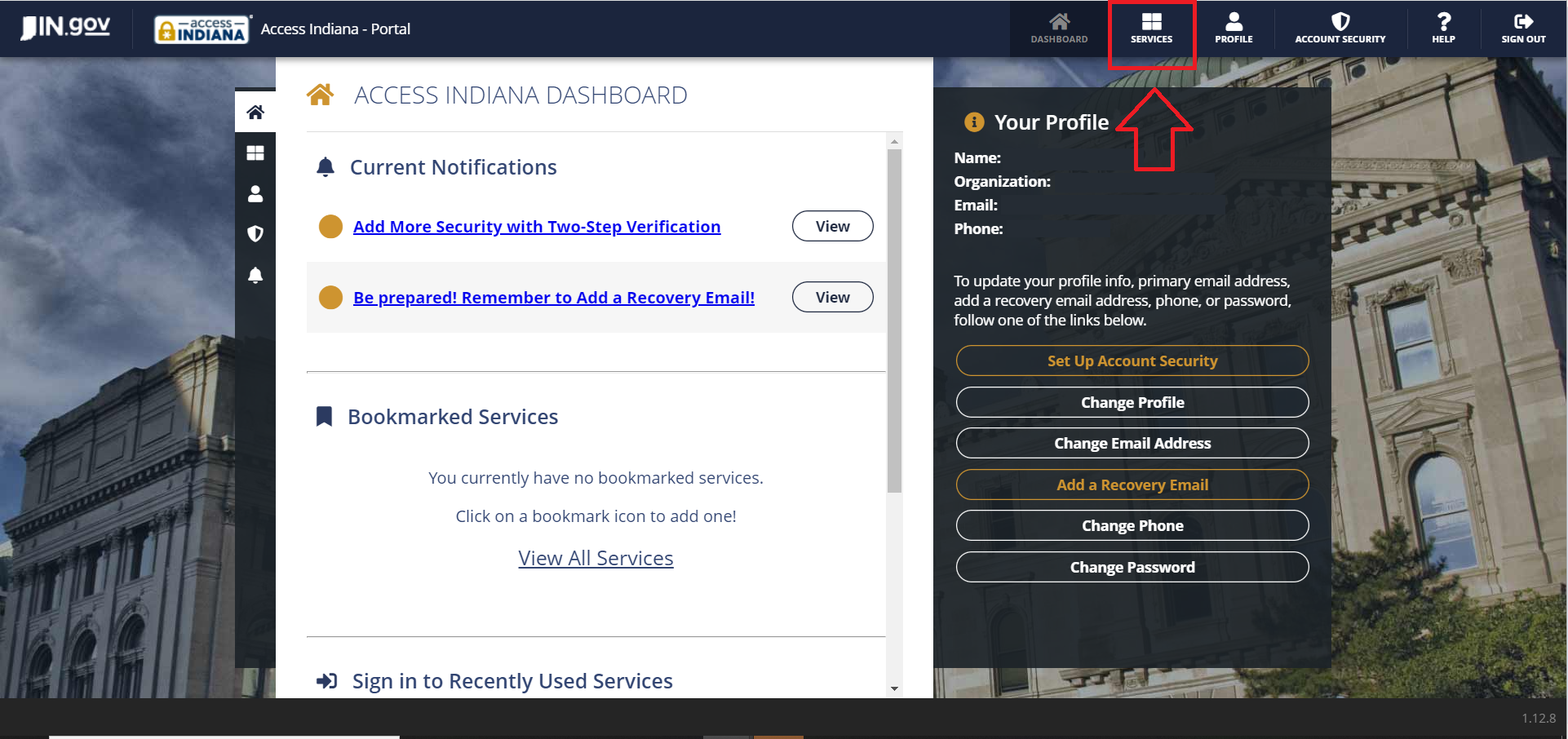
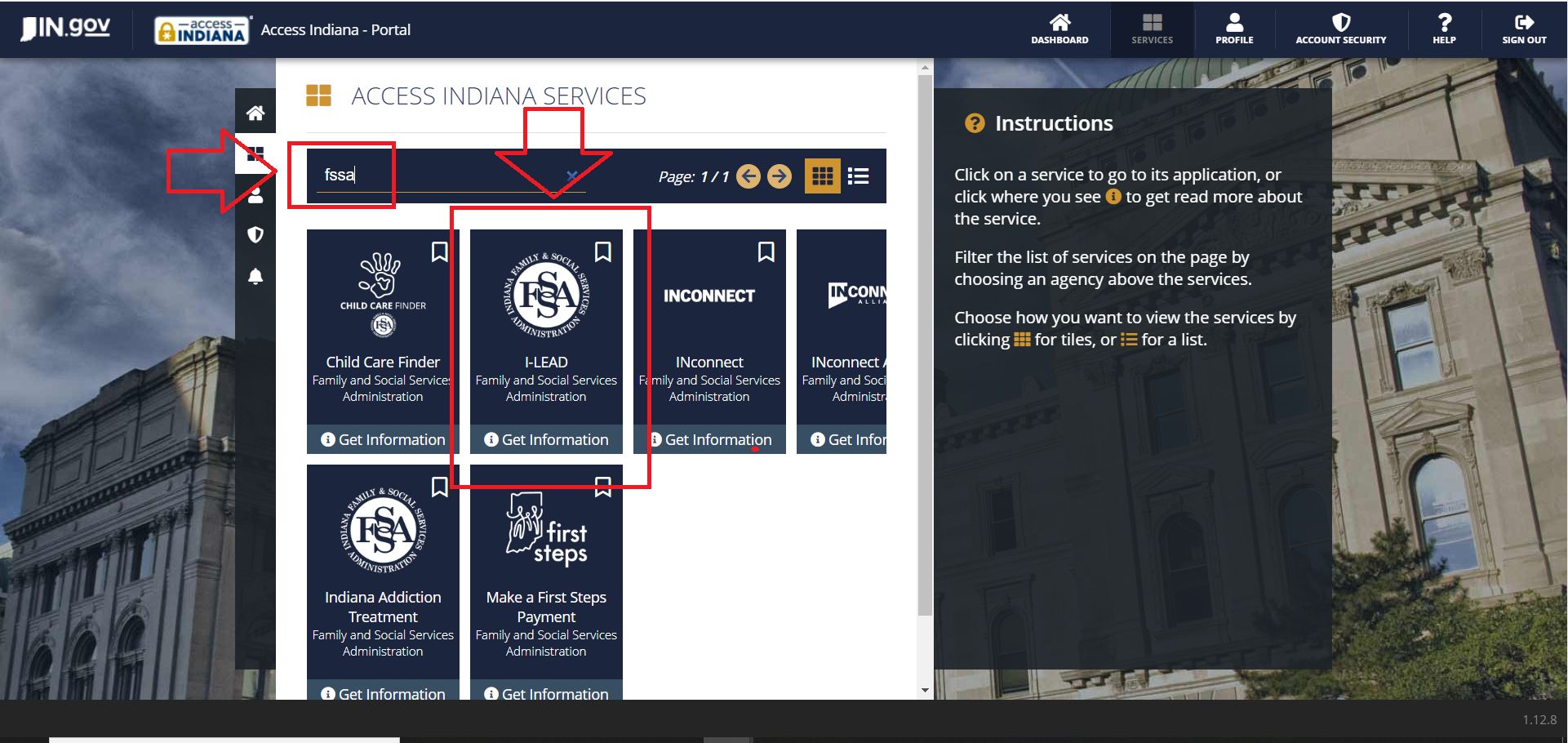
4.) Once the account is created, if you used ilead.in.gov to get to the website, it will bring you back to I-LEAD. If you went to Access Indiana via access.in.gov, select "Services".
Then enter "FSSA" or "I-LEAD" in the "Search Services" section. Select the one that says "I-LEAD: Family and Social Services Administration".
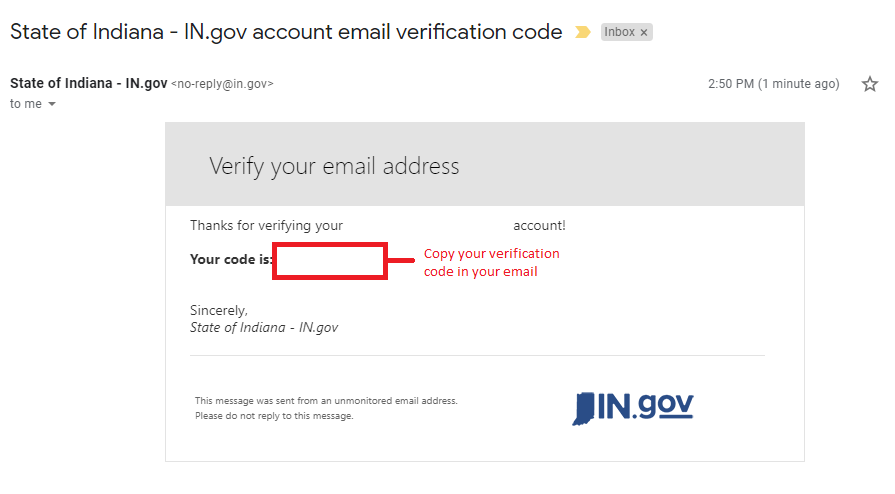
5.) Keep the I-LEAD window open while you check your email for the verification code on another device or in another tab/window. The code will be sent via no-reply@in.gov.
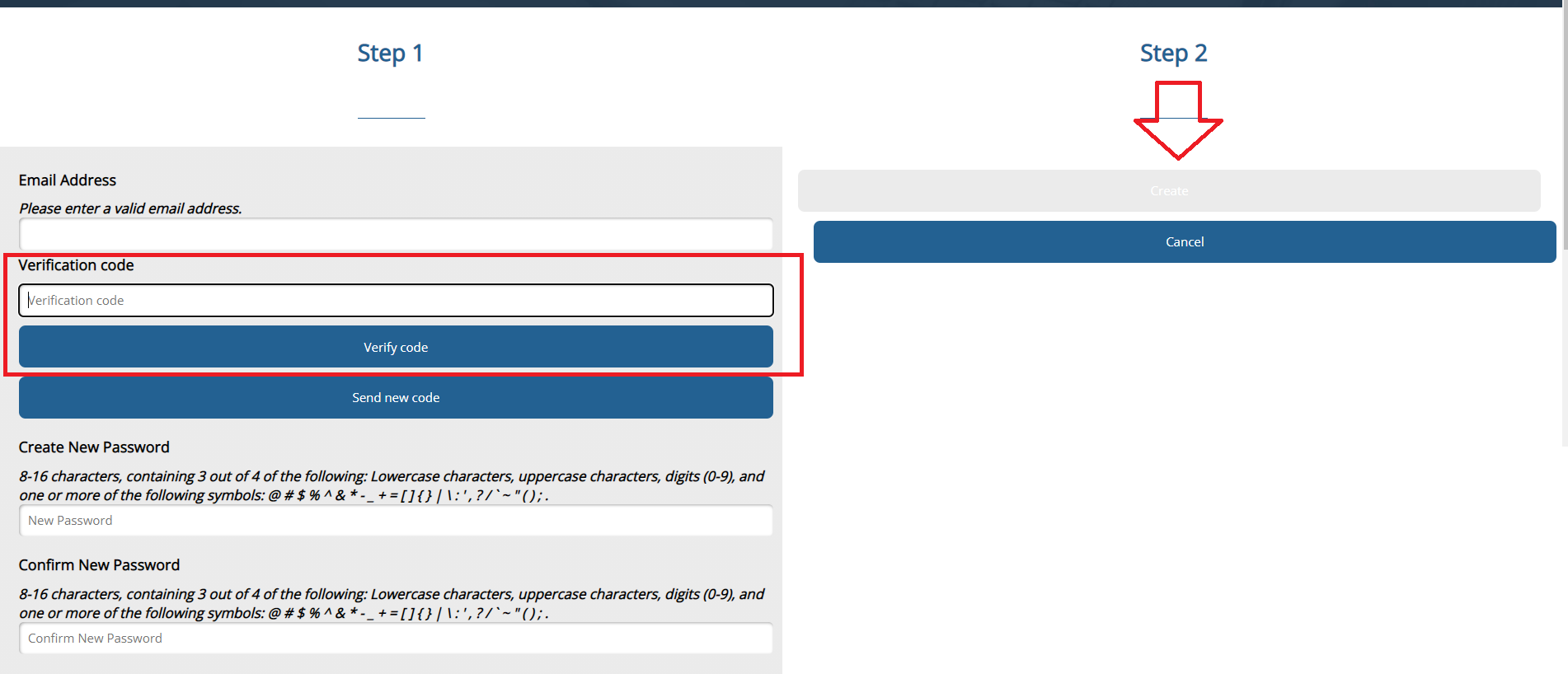
6.) Go back to I-LEAD after checking your email and enter the verification code in the box above Verify Code. If all other fields are filled in and the passwords match, click Create to continue to the next page.
| Note: Please ensure that all listed password requirements are met. Please also make a note of what your email and password logins are used as most users will need them to perform training and do their annual consent form for child care employment. |
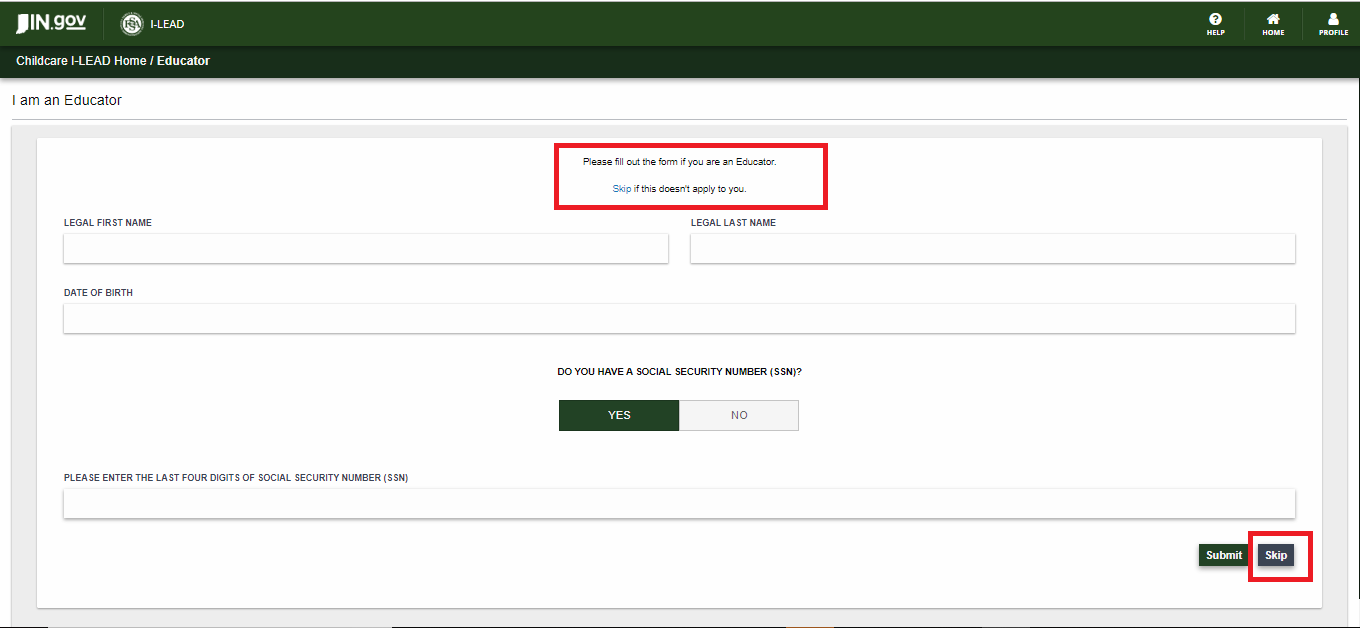
7.) The I am an Educator Page will come up next. This is used to merge your new account with past training records and consent forms. New users in I-LEAD who have never submitted a consent form or licensing application should, "Skip" to Step 6.
Returning users:
- Citizens: Enter your legal first name, legal last name, date of birth (DOB), and last four of the social security number (SSN) for I-LEAD to find and merge you to your information. Use the MM/DD/YYYY format for your DOB.
- Non-Citizens: Enter your legal first name, legal last name, date of birth (DOB), and a Tax Identification Number (TIN) instead. To receive this option, click "No" on "Do you have a social security number (SSN)?". Enter the last four of the TIN number. For those without one, please enter all 9(s). Ex: 9999. Use the MM/DD/YYYY format for your DOB.
Then click Submit.
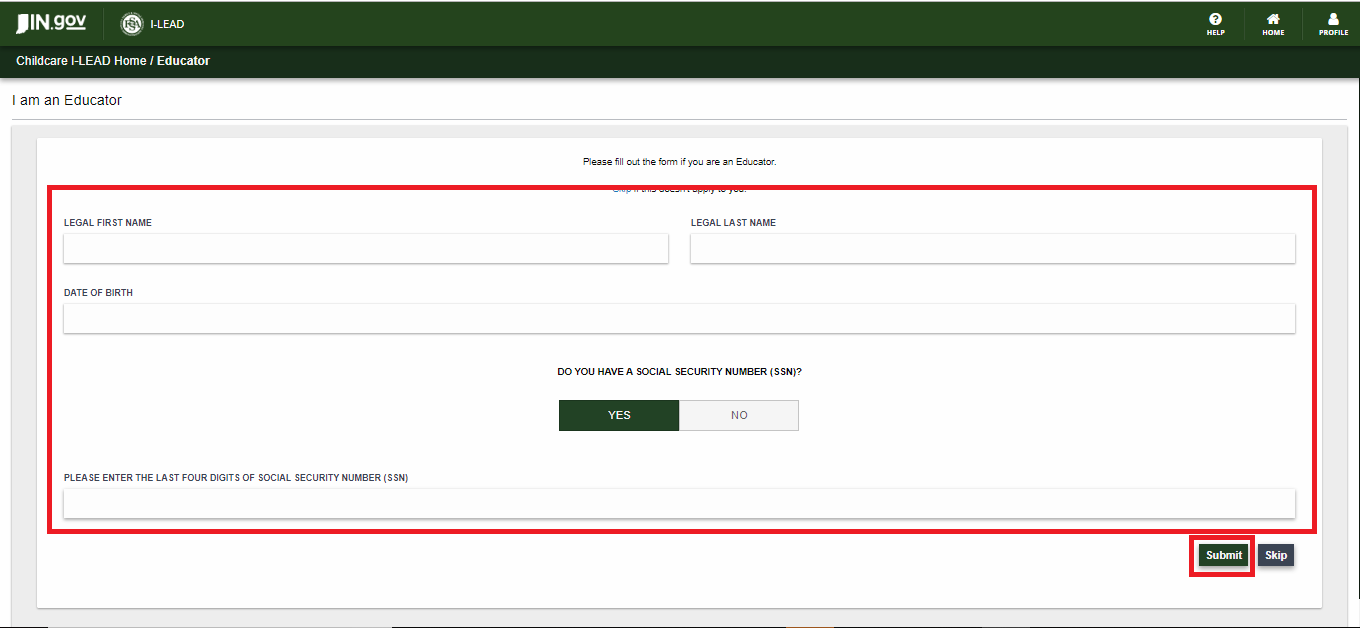
Note: The name and information on this section must match the consent form in the I-LEAD system for a successful merge. This is a feature usually available for those who have completed consents on I-LEAD before or whose consultant uploaded a paper consent form on their behalf.
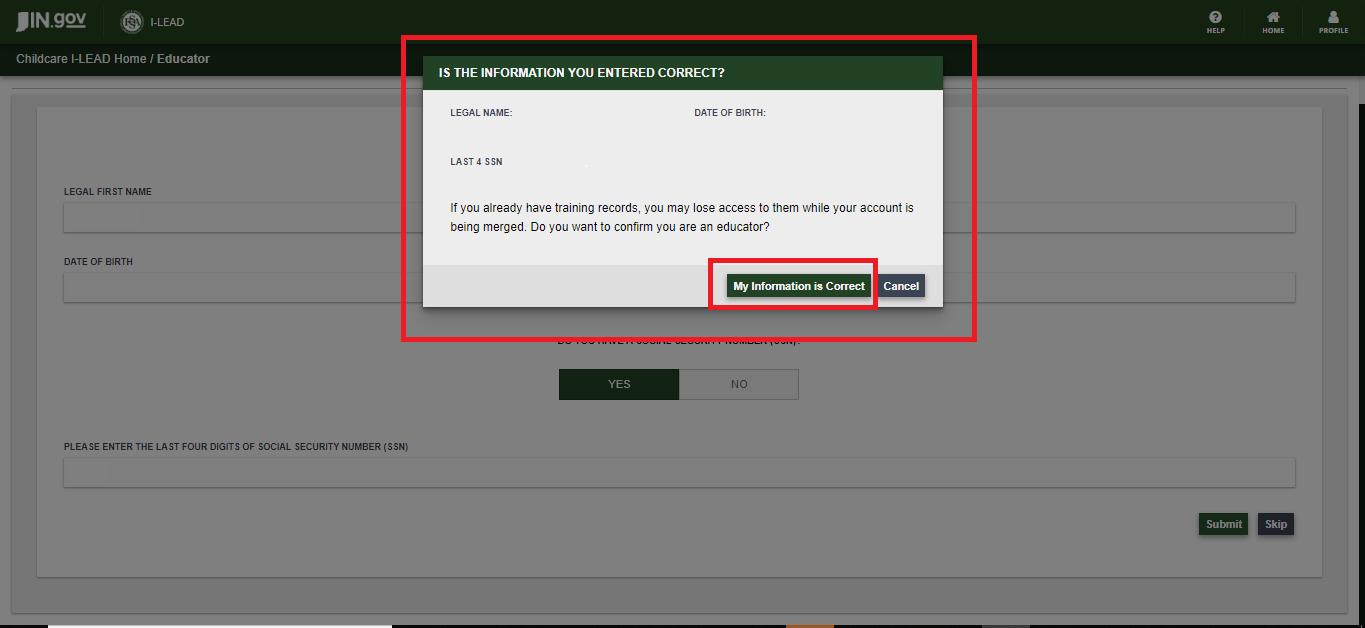
A section will come up that says My Information is Correct. Click this button so I-LEAD can check for any past consent forms in the I-LEAD system to merge with.
Skip to "No Results" below if this feature is unable to find your consent information.
If your records are found in the system, a "You have been verified as an Educator" message will come up. Click Update Profile to merge. (Note: The information has to match for a merge to be successful. During a merge, training certificates may take up to 48 hours to show on the account).
-OR-
No Results
For anyone who isn't affiliated with a daycare, never completed any past consent forms, isn't found in the I-LEAD system, or has never created an I-LEAD account before, press "Skip" to move onto their profile instead. The Skip button is at the top of the page or the bottom right.

8.) Fill out your profile information using the fields below.
a.) Legal first and last name
b.) Phone number
c.) Choose your Title (Most select Early Childhood Educator)
d) Home address (Enter Street Address, City, State, and Zip code)
e.) Select your County
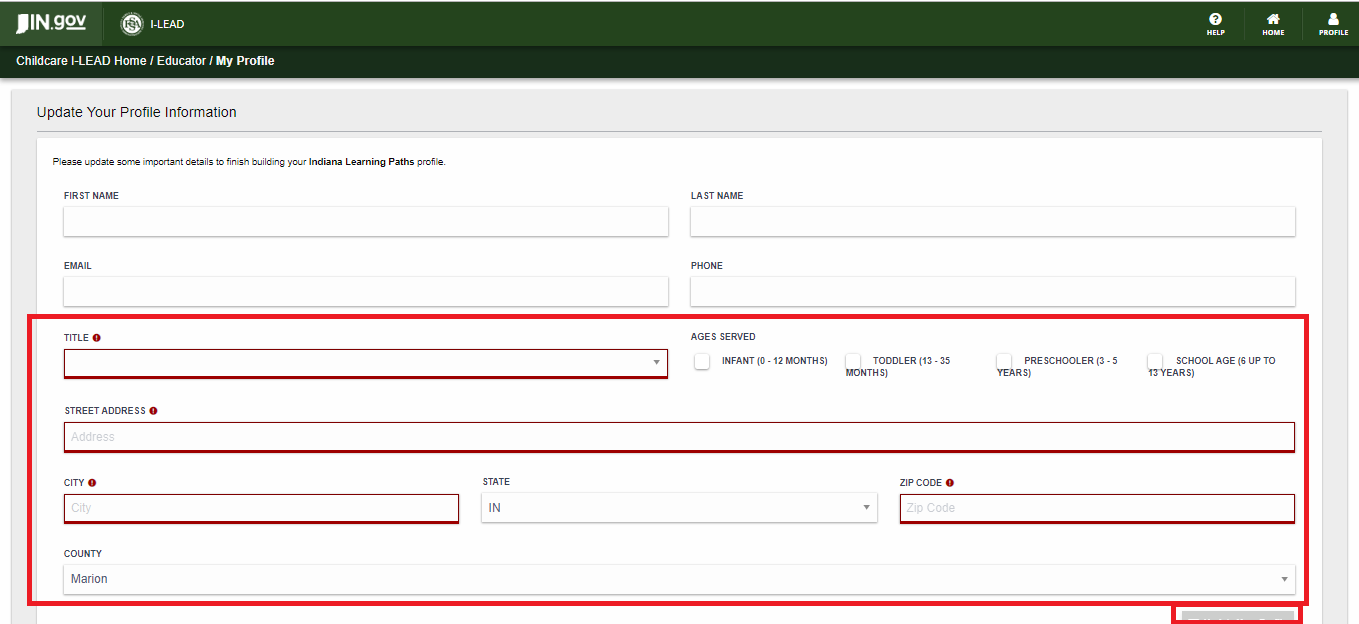
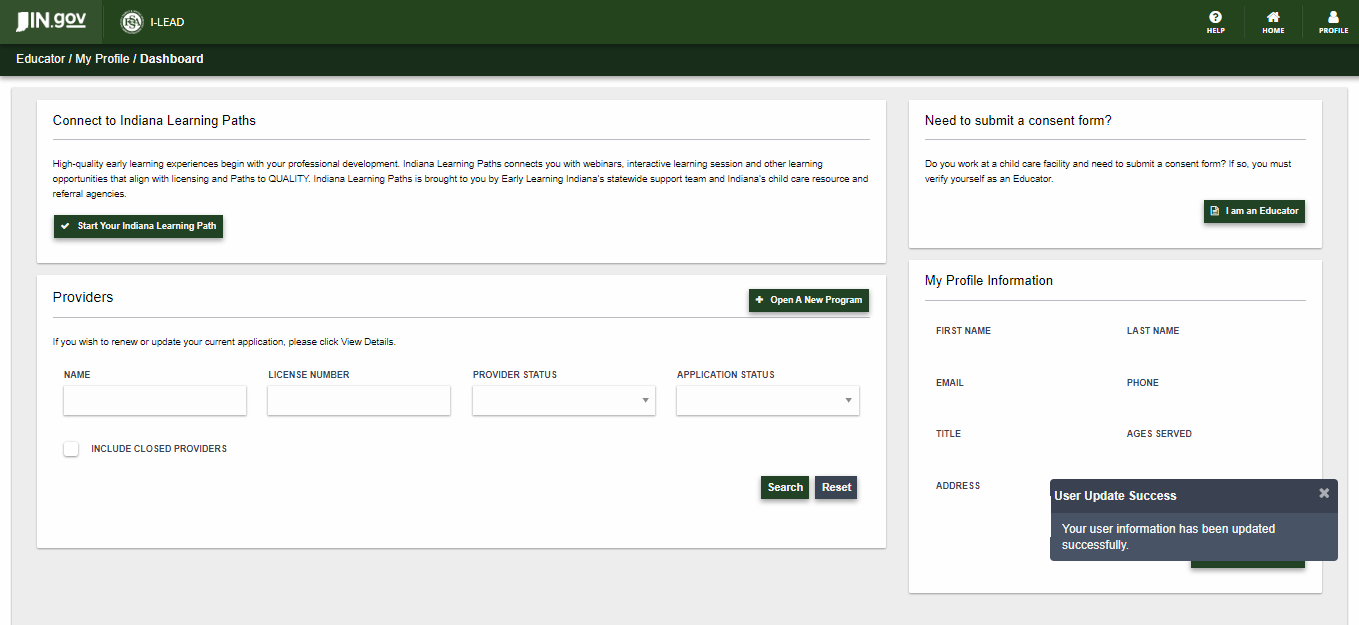
9.) Click Update Your Profile to complete your I-LEAD registration. If it worked a message will pop up saying "User Update Success: Your user information has been updated successfully." and you will be routed to your I-LEAD Dashboard. All Guest accounts will have an "I am an Educator" button if they're not connected to a daycare.
Should you have any additional questions or concerns, please contact the Brighter Futures Solution Center directly at 1-800-299-1627 for assistance.