
Data Entry Setup
The Data Entry Setup section of the Parent Provider Portal (PPP) is used to determine how a provider admin will submit their CCDF/OMW absences. There are two options for setting up how the absences are recorded and submitted:
- Submit Attendance Through PPP (on I-LEAD):
- Providers who wish to submit attendance through PPP (on I-LEAD) are set automatically to“PPP” (Parent Provider Portal) for each license they want to submit absences for bi-weekly.
- Anyone who isn’t using a child care management system (CCMS) for the purposes of attendance should keep their status as “PPP”.
- Submit Through Your Child Care Management System (CCMS) Vendor:
- Providers who wish to submit attendance through their CCMS vendor must select their CCMS from the drop-down list instead of “PPP.”
- Only the following CCMS vendors are compatible with I-LEAD:
- The date to start has to be a future date (not the current submission period) to link I-LEAD and the CCMS website/app for attendance purposes.
- The rosters on I-LEAD and your CCMS must have the same number of children with the correct Child ID listed.
- Providers who wish to submit attendance through their CCMS vendor must select their CCMS from the drop-down list instead of “PPP.”
Important: Do Not Change Until You’ve Done the Following:
Before you make any changes to the Data Entry Setup section, please click the Home button and check to see if you have the following message at the top of the screen:
“Service Period (MM/DD/YYYY) - (MM/DD/YYYY) due on (MM/DD/YYYY). Please enter and review absences for this service period and submit.”
If you do, there are outstanding service period submissions in the Absences section on I-LEAD that require attention before you can link I-LEAD to your CCMS. Failure to do this could result in missing or locked fields in the Absences section or an inability to use the attendance feature on your CCMS website/app. If you’ve already made this change and are unable to change back to “PPP” with a current date, please reach out to paymentquestions@fssa.in.gov for assistance.
Retrieving Child IDs
If you wish to submit your attendance on your CCMS website or app, you need to verify that the number of children on your roster match the number listed in the Absences section of in the I-LEAD Provider portal. If a child is missing from your CCMS, you may receive error messages preventing the ability to submit. All children must be listed and have the correct Child ID assigned to them. You can check PPP for the correct Child ID (listed next to the child’s name on the Absences screen). If you’re not sure how to add a child to your roster, correct the Child ID or submit your attendance through your CCMS, contact your CCMS vendor for guidance.
Removing a Child
Log on to the Provider Porter through ILEAD and select the absences tab:
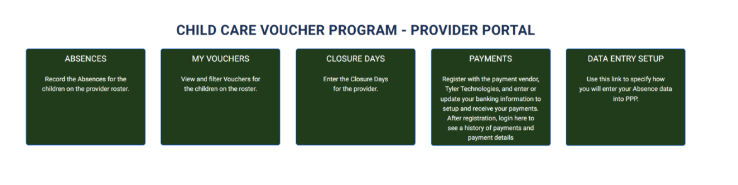
Using the Absences option in your provider portal, providers are able to indicate which children are no longer attending, or who enrolled but never started. This will allow providers to remove children more quickly and easily.
Don’t forget: Providers must report a child who is not attending within 5 business days.
Select the child who is no longer attending:
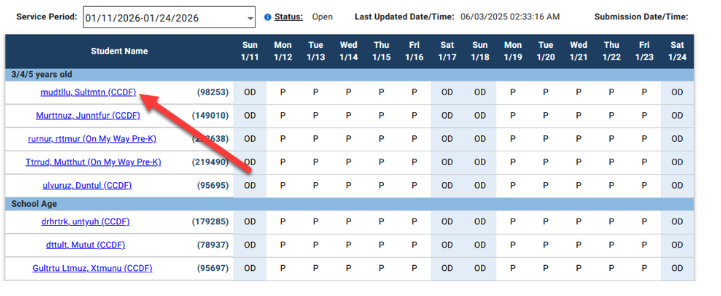
From here, select the hyperlinked name for the child who is no longer attending your program. Children are allowed up to 40 occasional absences during an enrollment year, which begins and ends on the child’s anniversary date. Absences reset each year on that anniversary date, which can be found in the portal. Providers are still paid for these occasional absences; however, this does not include multiple consecutive weeks marked as Absences or Off Days after a child is no longer attending, so it is important to report those situations right away. Parents and providers will receive notices when a child has missed 10 days, and again at 20, 30, and 35 days. If a child is removed from care but later returns and you agree to re-enroll them, vouchers can always be reinstated.
Select the checkbox "No Longer Attending":
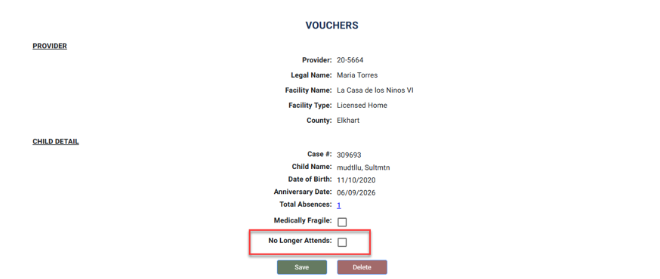
Once you have selected the child’s name, this screen will open and you will need to select the checkbox labeled “No Longer Attending” for that child. This new feature will replace the current requirement to complete the Roster Clean Up form for children who are no longer attending. However, the Roster Clean Up form will still need to be used for Start Date Changes, Gaps in Care and children who were paid in the wrong age group. Any payments that need to be recouped or attendance corrections that need to be made should still be sent to your policy consultant.
Enter or select from the calendar the last day attended in the box that appears:
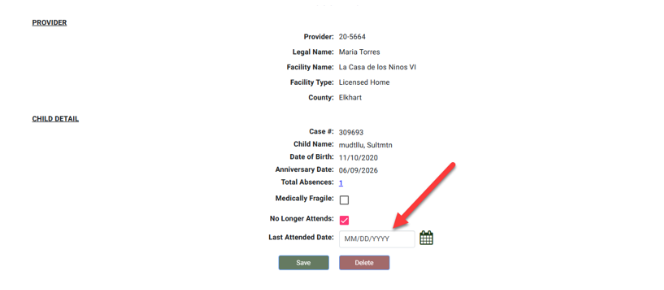
- Once you have checked the box, you will enter the child’s last day attended. Vouchers do not cover a child’s two week notice, so you will not be paid for absences listed past their last day attended. If a child enrolled but never attended your program, please list the first day they had vouchers as their last attended date to remove those vouchers completely.
DO NOT wait to report those as those as it will result in improper payment and funds will need to be recouped.
Then click the save button to automatically send the info to the Eligibility Office:
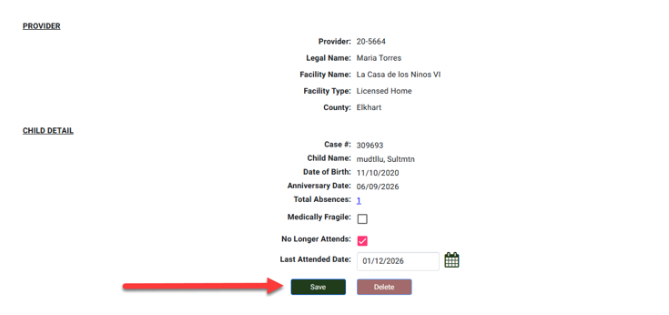
Once you have entered the date, select Save. This information will automatically be sent to the correct eligibility office to make any necessary corrections. If an end date is listed for vouchers that have NOT already been paid, the eligibility office will shorten vouchers to the last date paid. However, if an end date is listed for vouchers that HAVE already been paid, the eligibility office will notify your policy consultant that a recoupment is needed.
Remember, if you are reporting non attending children within the required 5 business days, you should not have overpayments since we pay 3 weeks in arrears.
If you make a mistake, you can select delete and start again:
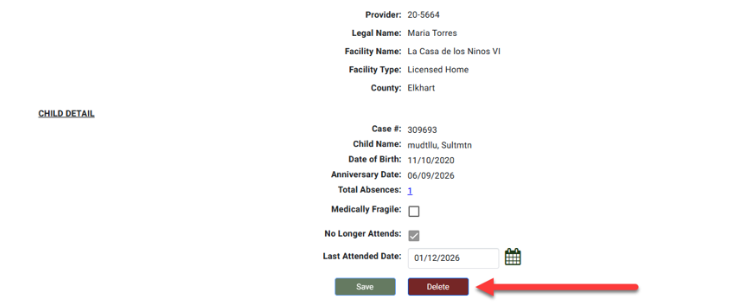
If you make a mistake, you can select the delete button. If you do need to re-enter, please start again and select the No Longer Attending checkbox and enter the correct date.
Provider: Displays which license to view and change connections.
Legal Name: The business name or the name of the main provider admin who opened the child care facility.
Facility: The legal name of the child care facility connected to the license number.
Name: listed in the Provider section.
Facility Type: The type of license the facility has.
County: The child care program's county of operation.
Entry Application: Select the way in which the provider will submit attendance through I-LEAD or a compatible CCMS vendor. The options consist of the following:
- PPP: Parent Provider Portal; the default setting for everyone’s license and should be left as is if the attendance is going to be submitted through I-LEAD. Providers who no longer have a subscription through their CCMS need to change back to PPP and select a future “Date to Start” to begin submitting attendance again on I-LEAD through the Absences section. They must continue to submit through the previous method until that date.
- Brightwheel: This option will link PPP to the Brightwheel app.
- Playground: This option will link PPP to the Playground app.
- ELV: This option will link PPP to the Alliance Core- Early Learning Venture app.
Note: Do not change from PPP to your CCMS if there are active service periods for which you haven’t yet submitted attendance on PPP.
Date to Start: Allows you to select a future date when your PPP or CCMS link will be active. Note: Do not select an Entry Application or Date to Start until all past and the most recent service period have been submitted. Only future dates can be selected.
Need Additional Help?
If you need guidance or support, contact the OECOSL Child Care Support Line at 1-800-299-1627 or email Qualitysupport@fssa.in.gov for assistance.
Disclaimer: It is the provider's responsibility to check their vouchers in the provider portal every week and report any discrepancies to avoid improper payments. If a provider is paid for a child who is not enrolled/attending, these payments should be reported to the state as soon as possible, and a recoupment will be processed if the provider still has current vouchers. If the provider does not have any current vouchers, they will be responsible for mailing a check to the state and will receive instructions from their policy consultant.